# initialization
import os

if not os.getenv(
    "NBGRADER_EXECUTION"
):  # Skip the code or auto-grading may take too long to complete.
    %reload_ext jupyter_ai
The course’s programming environment is conveniently accessible via a JupyterHub server, allowing remote access without the need to install any special software, thanks to Project Jupyter. Each student will have their own Jupyter server with individual computing resources including CPU, memory, and even GPU for training AI models. This means you can easily write and run programs on your mobile devices using just a web browser.
In practice, programmers have to use and setup different programming environments based on their tasks, and they have to find ways to work collaboratively with others under the same environment. This notebook will introduce a collaborative server with GPU, and how you may setup the basic environment locally on your computer.
Remote Access
Group Server
Collaboration
All registered students can collaboratively work on the same Jupyter server using the test group (Jupyter) server all-cs5483 that have higher resource limits than the individual user servers:
Storage: 100GB
Memory: 200GB
CPU: 32 cores for default servers without GPU.
GPU: 1x, 2x, or 4x48GB for the GPU server option.
This is useful for explorative studies and testing.
For instance, you may use the following link to git-pull course notebooks to the target folder {user_id}/{course_id} and open a notebook say Tutorial1/Data_Files.ipynb in the collaborative server:[1]
import os
from notebook_link_generator import generate_notebook_link, setup_notebook_link_widget

notebook_path = 'Tutorial1/Data_Files.ipynb'
canvas_id = '67502'
course_id = 'cs5483_25b'
target_path = os.getenv('JUPYTERHUB_USER') + '/' + course_id
user_id = 'all-cs5483'
print(generate_notebook_link(notebook_path, canvas_id, course_id, target_path, user_id))
setup_notebook_link_widget(notebook_path, canvas_id, course_id, target_path, user_id)
<h4>Tutorial1</h4>
<ul>
  <li>
    <a href="https://canvas.cityu.edu.hk/courses/67502/external_tools/retrieve?display=borderless&url=https%3A//dive.cs.cityu.edu.hk/cs5483_25b/hub/lti/launch%3Fcustom_next%3Dhttps%253A//dive.cs.cityu.edu.hk/cs5483_25b/user/all-cs5483/git-pull%253Frepo%253Dhttps%25253A//github.com/dive4dec/cs5483_25b%2526urlpath%253Dlab/tree/ccha23/cs5483_25b/Tutorial1/Data_Files.ipynb%2526targetPath%253Dccha23/cs5483_25b" target=_blank>Data Files</a>
  </li>
</ul>
If the Jupyter server is not already running, you have an option to run it with different number of GPU cards as shown in Figure 1.
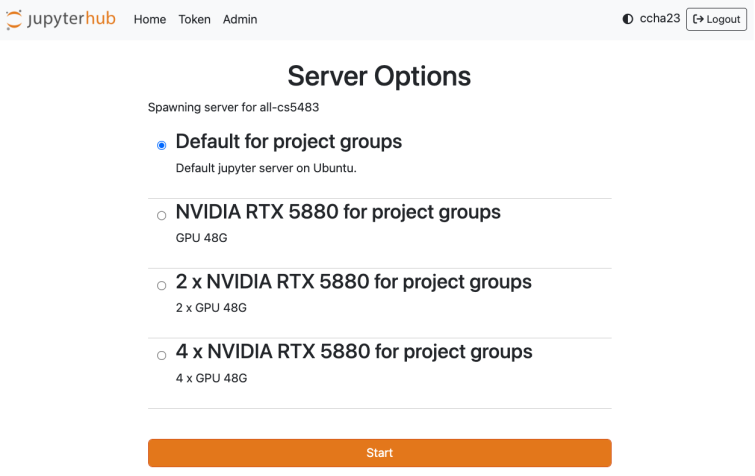
Figure 1:Server options for group server.
To access and manage the server from the JupyterHub interface:
Access the Hub Control Panel:
Within the JupyterLab interface, click
File->Hub Control Panel.
Select the Admin Panel:
In the top navigation bar of the Hub Control Panel, select the
AdminPanel as shown in Figure 2.
Locate the User:
Within the Admin Panel, look for the user named
all-cs1302.
Manage the Server:
If the server has not started:
Click the action button labeled Spawn Page to select the server options with higher resource limits.
If you click the action button labeled Start Server, the server will start with lower resource limits that apply to individual user servers.
If the group server is already running:
Click the action button labeled Access Server to access the currently running server.
If necessary, click the action button labeled Stop Server to terminate the existing server.
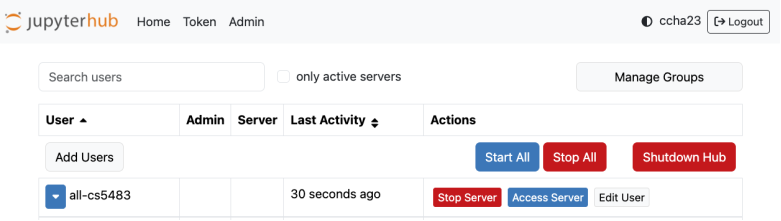
Figure 2:Admin panel for managing group server.
Group servers run JupyterLab in collaborative mode, which provides real-time collaboration features as shown in Figure 1. This allows multiple users to chat with each other and live edit the same notebook simultaneously. For more details, see the packages:
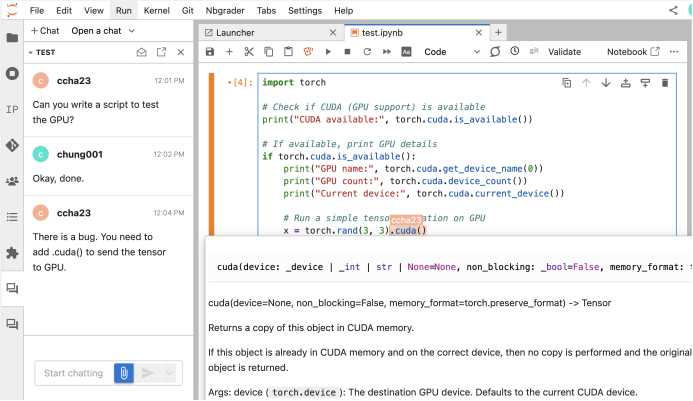
Figure 1:Collaborative mode in JupyterLab.
To view another user’s name while they’re editing the same notebook, hover over their cursor.
To chat with others, you can either write directly in the notebook or invite them to a chat via the chat panel.[2]
Learning with GPU
With the GPU resources, we can run a generative model locally using Ollama. To do so, start the Ollama service as follows.
In JupyterLab, navigate to the
Filemenu.Select
Newfrom the drop-down menu and chooseTerminal.The terminal window will appear. You can use this terminal to run a shell command. Enter the following command into the terminal prompt and hit enter.
ollama serveTo terminate Ollama, simply type Ctrl + C, the same way you would terminate any shell command by Keyboard Interrupt.
After running ollama serve, you can execute the following cells to chat with different models.
%%ai ollama:qwen3
Why LLM runs much faster on GPU than on CPU?
The first run will take a while as the model gets loaded into the memory.
%%ai ollama:gpt-oss
What is the difference between GPU and NPU?
Switching models also require additional time to reload the new model into the memory.
To use Ollama with Jupyternaut:
Click the chat icon 💬 on the left menu bar. A chat panel will open.
Click the gear icon ⚙️ on the chat panel to set up the provider.
Select the Completion model as
DIVE Ollama :: ...with...replaced by your desired model such asphi3. You may also useOllama :: *to enter the model ID.Click the
Save Changesbutton.Click the back arrow at the top to go back to the chat panel.
Enter some messages to see a response from the chat model.
Different models have different sizes and may be good at different things. The following executes a shell command to list other models that can be served by Ollama.
if not input('Execute? [Y/n]').lower()=='n':
    !ollama list
Execute? [Y/n]
NAME                  ID              SIZE      MODIFIED
olmo-3:latest         b8d4c92ac9c1    4.5 GB    About a minute ago
deepseek-r1:latest    6995872bfe4c    5.2 GB    6 minutes ago
gemma:latest          a72c7f4d0a15    5.0 GB    8 minutes ago
qwen3-vl:latest       901cae732162    6.1 GB    10 minutes ago
gpt-oss:latest        17052f91a42e    13 GB     15 minutes ago
qwen3:latest          500a1f067a9f    5.2 GB    16 minutes ago
The models reside in the directory specified by the environment variable OLLAMA_MODELS:[3]
%env OLLAMA_MODELS'/models/ollama'In addition to running Ollama, you can learn to use PyTorch and other machine learning packages pre-installed in the server.
import torch

torch.cuda.is_available()
Custom Packages
Installing Packages
To list existing packages installed in the Jupyter server:
if not input('Execute? [Y/n]').lower()=='n':
    !conda list
if not input('Execute? [Y/n]').lower()=='n':
!pip listYou can install additional packages using the commands
conda installfor packages on Anaconda, orpip installfor packages on PyPI.
The following is an example using pip to install a package cowsay:
if not input('Execute? [Y/n]').lower()=='n':
    !pip install cowsay
import cowsay
cowsay.cow("I am a pip installed package ((((((...ip)ip)ip)ip)ip)ip)!")%%ai
What does pip stand for?As another example, you can use conda to install the new super-fast package manager uv written in Rust:
if not input('Execute? [Y/n]').lower()=='n':
    !conda install uv --yes
Let’s take a glimpse of the future of Python by installing the latest version with uv:
if not input('Execute? [Y/n]').lower()=='n':
    !uv python install 3.14
Now, run the following Hello-World program which uses the newly introduced t-string:
!uvx python@3.14 -c 'name="World"; msg=t"Hello, {name}!"; print(msg)'%%ai
What are the pros and cons of conda install, pip install, and uv install?Conda Environment
Although this could be viewed as a feature rather than a bug—because you can test by installing a package and reset your environment simply by restarting the server—what if you want the installation to stick?
%%writefile myenv.yaml
name: myenv
channels:
  - conda-forge
  - defaults
dependencies:
  - python=3.12
  - ipykernel
  - pip:
    - cowsay
Overwriting myenv.yaml
%%ai
What does YAML stand for?To create the environment, run
conda env create --file myenv.yamlTo update an existing environment, run
conda env update --file myenv.yaml --pruneThe environment will persist because we have reconfigured conda to save to environments to the home directory by default:
!cat /opt/conda/.condarc# Conda configuration see https://conda.io/projects/conda/en/latest/configuration.html
auto_update_conda: false
show_channel_urls: true
channels:
- conda-forge
envs_dirs:
- ~/.conda/envs%%ai
What does rc stand for in .condarc?You can create a Jupyter kernel using the environment as shown in Figure 4 by running the command:[5]
conda activate myenv
python -m ipykernel install \
    --user \
    --name "myenv" --display-name "myenv"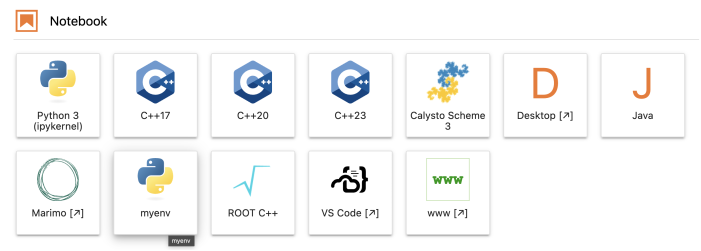
Figure 4:Custom Jupyter kernel from a conda environment.
conda activate is the command to activate an environment to use its installed packages.
To deactivate the conda environment in a terminal, run
conda deactivateTo delete the kernel, run the command
rm -rf ~/.local/share/jupyter/kernels/myenvTo delete the conda environment, run
conda deactivate
conda env remove -n myenv%%ai
How is micromamba compared to mamba and conda?Desktop Applications
In addition to using a web browser, you can connect to the JupyterHub server using desktop applications such as JupyterLab Desktop or VSCode Editor. Follow the links below to install the applications and the required extensions on your computer:
VSCode Editor with the following extensions:
Connecting via JupyterLab Desktop
Launch the JupyterLab Desktop app.
Click Connect...
Enter the server URL:
https://dive.cs.cityu.edu.hk/cs5483_25b/Login with your EID and password.
Troubleshooting
If you encounter connection errors or the interface becomes unresponsive, try reconnecting or restarting the app. You can also open the developer tools (Ctrl+Alt+I or Cmd+Opt+I) and then reload the page (Ctrl/Cmd+R).
Connecting via Visual Studio Code
Before connection, make sure your Jupyter server is running since idle Jupyter servers are culled automatically to release the computing resources.
Open JupyterHub, go to the Token page (
File → Hub Control Panel → Token)
and generate a token with your desired settings.
In your local VS Code app:
Open the command palette (
View → Command Palette...) and run:JupyterHub: Connect to JupyterHubCreate a new connection with the following details:
Name: Any name of your choice such as
DIVEURL:
https://dive.cs.cityu.edu.hk/cs5483_25b/Token: Use the one you generated.
Once connected, you’ll see the JupyterHub Explorer panel in the bottom-left corner.
Open any notebook file.
In the top-right corner, click Select Kernel.
Choose an existing Existing JupyterHub Server... and enter the following details:
Server URL:
https://dive.cs.cityu.edu.hk/cs5483_25b/Username: your EID
Token: the one you generated
Server Name: any name you prefer
Kernel: select Python 3 (ipykernel)
You’re now equipped to work with JupyterHub from your desktop. Just keep an eye out for quirks and bugs, and you’ll be fine!
Troubleshooting
If VS Code behaves unexpectedly or fails to connect, try reloading the window:
Go to the command palette and run:Developer: Reload Window
Running locally
Local Installation
You can install the minimal jupyter environment to run the course notebooks locally on your computer.
First, ensure you have the following prerequisites installed:
Conda: You have some options on which distribution to install on what platform. Miniforge is recommended as we mainly use packages from
conda-forge.Git and Make: These can be installed in a terminal by the following command after activating the base Conda environment:
conda install git make
To install the jupyter environment for the course:
Git clone the
cs1302nbrepository:
git clone https://github.com/dive4dec/cs1302nb.git
cd cs1302nb
Run the make command to create/update the conda environment
cs1302nb:
make installTo use the environment, activate it with:
conda activate cs1302nbOnce activated, you can start JupyterLab under a working directory of your choice:
jupyter labIf the installation was successful, the following message will appear but with a different token:
1 2 3 4 5 6... To access the server, open this file in a browser: file:///home/jovyan/.local/share/jupyter/runtime/jpserver-7-open.html Or copy and paste one of these URLs: http://2d94aee27406:8888/lab?token=afe3d84a4cadff3fe397640f651de4805471e7b19d1d6f1e http://127.0.0.1:8888/lab?token=afe3d84a4cadff3fe397640f651de4805471e7b19d1d6f1e
Copy and paste the last URL into your web browser to access the JupyterLab.
To access the course notebooks, open a new terminal within the JupyterLab interface and run the following command:
gitpuller https://github.com/dive4dec/cs5483_25b main cs5483_25bThis command will:
Pull the
mainbranch of the GitHub repositorydive4dec/cs5483_25b.Clone it into the subfolder
cs5483_25bunder your working directory.
Alternatively, you may use a gitpull link such as
to open the current notebook.
Troubleshooting
To ensure the link works correctly, you may need to adjust the port number. JupyterLab typically uses port 8888 by default, but if that port is already in use—possibly by another running instance of JupyterLab—it may automatically switch to a different port such as 8889. You may also need to enter the token printed in the URL:
...token=afe3d84a4cadff3fe397640f651de4805471e7b19d1d6f1eDocker container
A docker container is like a lightweight, standalone, and executable package that includes everything needed to run a piece of software, including the Jupyter server used for our course. If you know about virtual machines, you may think of a docker container as a separate virtual machine running on your host machine, but with much less overhead.
Indeed, you can also build and run the Jupyter server locally in your computer by installing Docker as follows.
To install docker:
For macOS, install Orbstack, which is faster than the alternative below.
For Windows/Linux:
install Docker Desktop from the official Docker website.
For Windows, see the additional setup to use docker for WSL2 on Windows.
Once installation is complete, open Orbstack or Docker Desktop and ensure it is running.
For Windows WSL2 and Linux on amd64, open a terminal and run the following command to pull the Docker image:
docker pull chungc/cs1302nb
To run the Docker Container:
Navigate to your working directory (e.g.,
cs5483_home) where you want to map to the home directory of the docker container:cd /part/to/cs5483_homeRun the Docker container with the following command:
docker run -it --rm \
  -p 8888:8888 \
  -v $(pwd):/home/jovyan/ \
  chungc/cs1302nb \
  start-notebook.sh \
  --IdentityProvider.token=''
If successful, you can follow similar steps in Local Installation to fetch the course notebooks using gitpuller.
What do the options mean?
The docker run command
run the container interactively (
-it);remove the container after it stops (
--rm);map port
8888on your host to port8888on the container (-p 8888:8888);mount the current working directory to the home directory
/home/jovyan/workinside the container (-v $(pwd):/home/jovyan/work); andset the token to an empty string (
'') so that you don’t need to provide a token when logging in (--IdentityProvider.token='').
See the documentation for other options.
Troubleshooting
If the host port 8888 is occupied, you can change it to another port such as 1302 by running the container with -p1302:8888. The port used to launch JupyterLab should be the host port, not the container port printed, i.e., the url to access the JupyterLab should be http://127.0.0.1:1302.
You may change the
Notebook pathto link to a different notebook such asTutorial1/Learning_Materials.ipynb.To download or run a new Ollama model, you need to set the directory to
~/.ollamaor any directory you have write access to. To use the model in JupyterNaut, select the Completion model asOllama :: *and specify the model id. Avoid downloading very big models with over 30b parameters, as those cannot run on the current GPU without quantization.See the documentation for more details on managing conda environment.
See the documentation for more details on creating kernels for conda environments.